
Spotting Phishing Emails Before They Trick You
Simple warning signs to recognize fake emails and protect your accounts from fraud.
Real risks on public networks and practical steps to keep your information private while traveling.


By
Written by the crappieclassic Editorial Team, focused on practical, honest guidance for safe browsing and online privacy.
Public WiFi networks at coffee shops, airports, and hotels are convenient. They're also basically open doors for people with bad intentions. Here's the thing: when you connect to an unencrypted network, anyone else on that same network can potentially see what you're doing — your passwords, messages, banking information, everything.
It's not paranoia. It's just how these networks work. The data you send travels through the air unprotected, making it easy for someone nearby with the right tools to intercept it. But don't worry — you don't need to avoid public WiFi entirely. You just need to know how to use it safely.
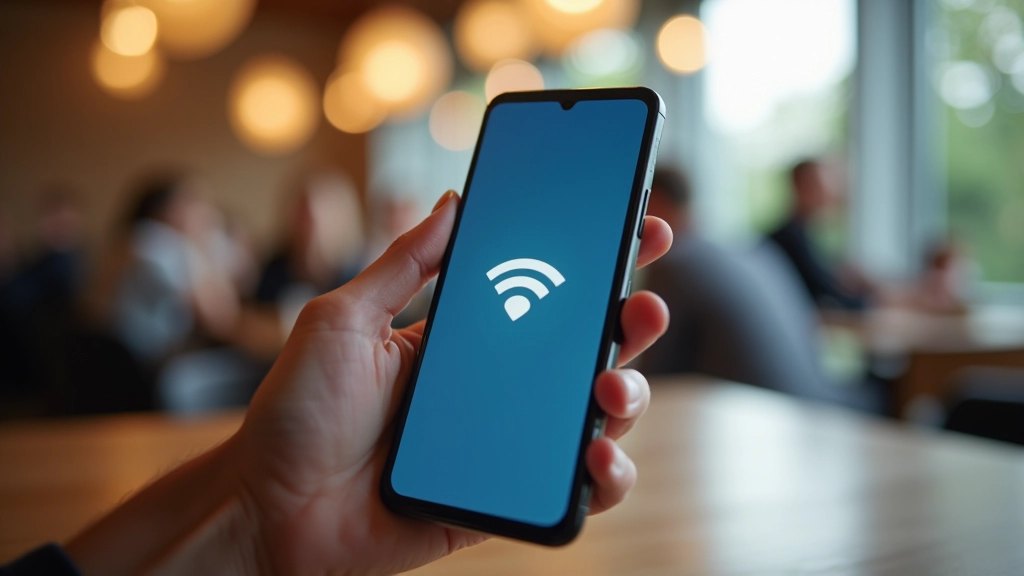
Without protection, hackers can steal login credentials, intercept messages, or inject malware into your device. This isn't theoretical — it happens thousands of times daily on public networks worldwide.
Follow these practical measures and you'll dramatically reduce your risk on any public network.
A VPN encrypts all your data before it leaves your device, making it unreadable to anyone on the network. It's like sending letters in a locked box instead of on a postcard. Download a trusted VPN app before you travel — set it to turn on automatically when you connect to public networks.
Your phone remembers networks you've used before and tries to reconnect automatically. This is convenient but risky. A hacker can create a fake network with the same name as a legitimate one, and your device might connect without asking. Disable auto-connect in your settings and manually choose networks instead.
Don't log into your bank account, make purchases, or access sensitive documents on public WiFi — not even with a VPN if you're unsure. Banking on mobile data (4G/5G) is safer. If you must use public WiFi, wait until you're on a trusted home network to handle financial matters.
Hackers exploit outdated software to get into devices. Install updates for your operating system, browser, and apps as soon as they're available. Set your device to update automatically so you don't have to think about it. This single habit blocks most attacks.

Think of a VPN like a secure tunnel for your internet traffic. When you're on public WiFi without a VPN, your data travels directly from your device to websites — visible to anyone monitoring the network. With a VPN, your data gets encrypted and routed through a secure server first. Even if someone intercepts it, they'll see only encrypted gibberish, not your actual information.
The best VPNs are paid services — they're worth the cost if you travel frequently or work from coffee shops regularly. Free VPNs often have limitations or sell your data to advertisers, defeating the purpose. Look for a provider that doesn't keep logs of your activity and has servers in countries with strong privacy laws.
Digital tools and platforms change over time — check the official website or app for the latest details, and take your time getting comfortable with anything new. VPN services, security features, and WiFi standards evolve regularly. Stay informed by reading updates from your device manufacturer and trusted security sources.
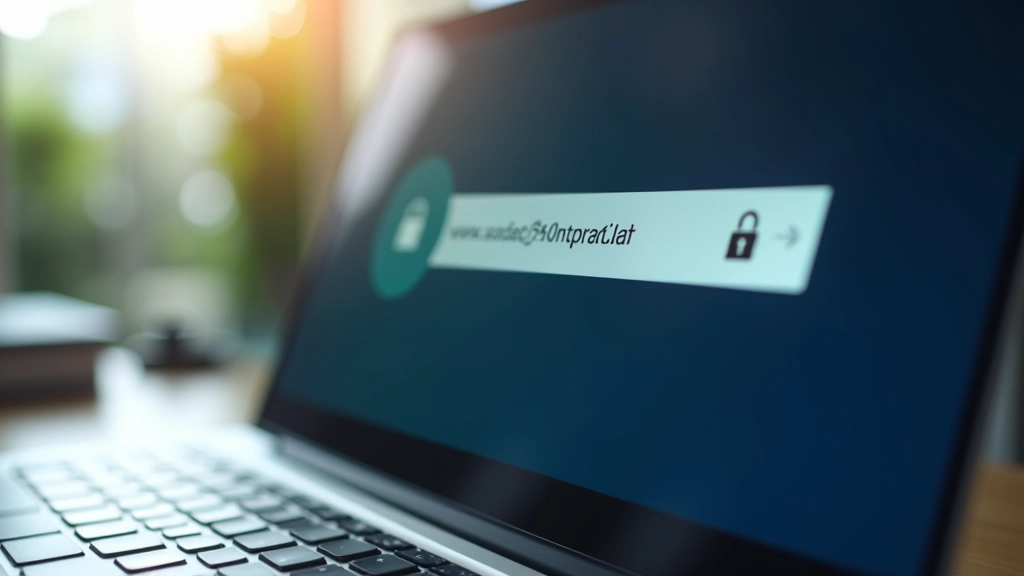
You've covered the main protection strategies. Here are a few more habits that make a real difference. Disable file sharing and Bluetooth when you're not using them — both can be exploited on public networks. Use HTTPS websites only — look for the padlock icon in your browser. If a website doesn't have HTTPS, don't log in or enter personal information.
Consider using a password manager that auto-fills login information. This prevents you from typing passwords on public networks where someone might see them. Two-factor authentication adds another layer — even if your password gets compromised, attackers can't access your accounts without a code from your phone.
Public WiFi doesn't have to be a security nightmare. You don't need to be a tech expert to stay safe — just consistent. Use a VPN, turn off auto-connect, avoid sensitive transactions, and keep your software updated. These four habits cover 95% of the threats you'll encounter.
The key is building these habits before you need them. Don't wait until you're at the airport to download a VPN or figure out your settings. Set everything up at home when you have time to think clearly. Then, when you're traveling or working remotely, protection is already in place. You'll have the confidence to use public WiFi without worrying.
Simple warning signs to recognize fake emails and protect your accounts from fraud.

How to build strong, memorable passwords without getting overwhelmed by complexity.
Step-by-step actions to take immediately when you suspect someone's accessed your account.